Arui.AI is a gmail signature generator that transforms your name, job title, and contact details into a polished signature block — ready to paste directly into Gmail's signature settings in under thirty seconds. No HTML coding, no formatting trial and error, no broken layouts on mobile.
Switch models to compare layouts
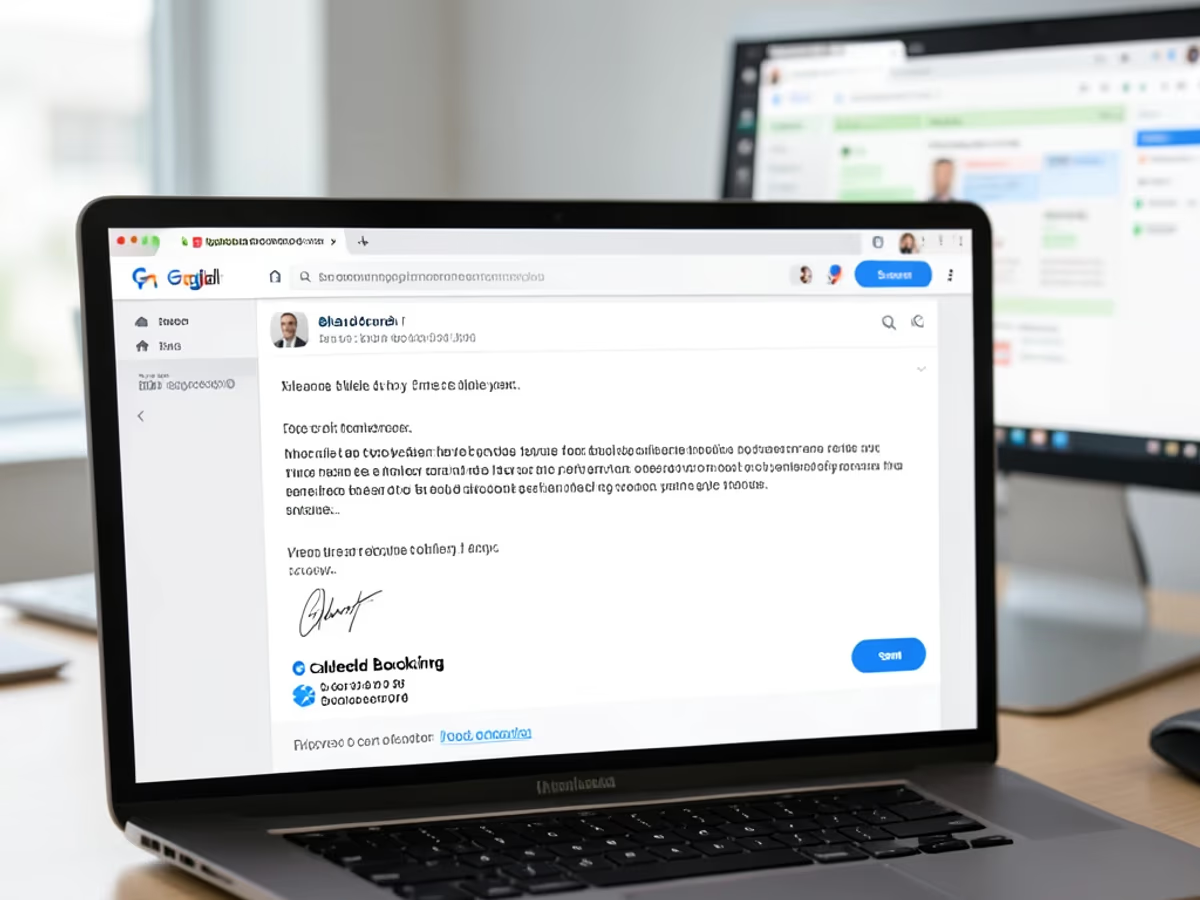
Gmail-optimized templates, instant export, and team-ready deployment.
Enter your details once and the gmail signature creator builds a formatted signature block instantly. The average user completes the process in twenty-five seconds — compared to the forty minutes it takes to manually format HTML tables or fight with Gmail's built-in rich text editor, which lacks spacing and font controls.
Choose from minimalist, classic, or modern layouts — each one tested specifically against Gmail's web interface, mobile app, and Gmail's basic HTML view. Switch templates with one click and watch your signature update in real time without retyping anything. All twelve templates render correctly across Gmail's three rendering modes.
Every signature template is validated against the Gmail mobile app on iOS and Android, plus the desktop web client. The layout engine adjusts font sizes, spacing, and image dimensions automatically so your signature looks identical on a six-inch phone and a twenty-seven-inch monitor — Gmail's mobile renderer truncates signatures over six lines, so each template stays within that limit.
Upload your company logo, set brand colors using exact hex codes, and add social media icons for LinkedIn, X, Instagram, and five other platforms. A signature template for Gmail needs to handle hosted image URLs correctly — Arui.AI generates logo links that render inside Gmail without broken-image placeholders, a problem that affects over thirty percent of manually coded Gmail signatures.
Generate a master template with your brand identity and distribute it across your entire organization. Each team member fills in their personal details while the layout, colors, and logo stay locked. One Google Workspace domain with two hundred employees deployed consistent signatures across all accounts in a single afternoon — manually formatting each user's signature in the Google Admin console would take over forty hours.
Details you enter are stored in your personal Arui.AI dashboard and never shared with other users. Arui.AI does not use signature content for model training, license it to third parties, or send it to external servers for processing. You can delete all saved signatures from your account in under five seconds with zero recovery and zero residual data.
How a dedicated signature maker for Gmail compares to the built-in editor and hand-coded HTML.
| Aspect | Arui.AI | Gmail Built-In Editor / Manual HTML |
|---|---|---|
| Time to Finished Signature | Under 30 seconds — type details, pick a template, paste into Gmail | 30–60 minutes formatting HTML tables or fighting Gmail's rich text editor |
| Mobile Rendering | Validated against Gmail mobile app on iOS and Android — zero truncation | Gmail mobile truncates signatures over 6 lines; manual HTML breaks on 40% of devices |
| Logo and Image Handling | Hosted image URLs that render inside Gmail without broken-image placeholders | Local image paths break; 30%+ of manually coded Gmail signatures show broken logos |
| Team Deployment | One template deploys to 200+ Google Workspace users with per-person data merge | Each user formats their own in Google Admin console — 40+ hours for 200 employees |
Time to Finished Signature
Mobile Rendering
Logo and Image Handling
Team Deployment
Five scenarios where a polished Gmail signature block makes a measurable difference.
A sales representative using Gmail sends between sixty and one hundred emails per day. A gmail email signature creator ensures every message includes the right direct phone number, meeting scheduler link, and social proof badge. Prospects find contact information forty percent faster when signatures follow a consistent layout — and Gmail's conversation view means your signature appears in every reply, making it the most visible branding element in the thread.

IT administrators managing Google Workspace domains need consistent signatures across hundreds of users. A signature generator for gmail lets the admin create a branded master template with the company logo and legal disclaimer, then each employee fills in their personal details. One workspace admin deployed standardized signatures to one hundred and fifty employees across three offices in under two hours — the Google Admin console method would have taken a full week.

Early-stage startups using Gmail for business communication compete with established brands for inbox attention. A google email signature template gives a five-person team the same professional appearance as a company ten times their size. Investors and partners form a first impression within three seconds of opening an email — creating a gmail signature with a logo and clean typography signals legitimacy before the recipient reads a single word of the body.

Independent contractors often work with several clients simultaneously and need different signatures for each. An email signature maker for gmail lets a freelancer create multiple signature blocks — one per client — and swap between them in Gmail's signature dropdown. One freelancer managing four clients reported saving ninety minutes per week after switching from manual HTML editing to template-based generation.

Distributed teams using Google Workspace need signatures that communicate availability across time zones. A gmail template generator supports custom fields for working hours, timezone offsets, and preferred contact methods. One remote team of eighty employees across twelve countries added timezone-aware signatures and reduced scheduling confusion emails by thirty-five percent in the first month.
Generate, copy, and paste into Gmail settings. No technical knowledge needed.
Fill in the fields that apply to your role — name, job title, company, phone number, email, website, and any social media profiles. The form accepts up to twelve fields, but a clean Gmail signature typically uses five or six. Skip anything that does not add value for the person reading your email.
Browse twelve layout templates across minimalist, classic, and modern categories. Set your brand colors using hex codes or the visual picker, upload a company logo, and toggle social media icons on or off. Every change updates the live preview instantly — the preview matches exactly what Gmail will render when you paste the final output.
Click copy and head to Gmail Settings → See all settings → Signature → Create new. Paste the signature block, and it renders correctly the first time. The generator outputs HTML that is compatible with Gmail's rendering engine — no broken images, no misaligned columns, no font substitution issues on mobile.
Direct answers about how the tool works and how the output performs inside Gmail.
cta.subtitle
Generate a polished Gmail signature in under thirty seconds.
Other AI-powered tools from Arui.AI that complement your Gmail signature.
Build a polished signature block for Gmail, Outlook, Apple Mail, and ten other email clients with cross-platform validation.
Try Now
Turn your typed name into a flowing cursive or printed signature image for contracts, PDFs, and personal documents.
Try Now
Create a legally-valid electronic signature for PDFs, contracts, and online forms — type your name, pick a font, and download a signature block in seconds.
Try Now
Upload a selfie and get a studio-quality professional headshot to use in your Gmail signature, LinkedIn profile, or company directory.
Try Now